How to Split a PDF Into Separate Files by Page Range
Sometimes you don't just need to break a PDF into single pages — you need to split it into logical chunks. A 60-page report might really be three sections. A scanned book might need splitting into individual chapters. A contract with exhibits might need to be broken into the main agreement and each exhibit as its own file.
That's where splitting by page range comes in — instead of extracting one page at a time, you pull out a group of consecutive pages as a single new document.
When You'd Split by Page Range Instead of by Single Page
Splitting by range makes sense when:
- You're breaking a long report into sections (e.g. pages 1–10, 11–25, 26–40)
- You need to separate a contract from its exhibits or appendices
- You're pulling a chapter out of a scanned book or manual
- You want to share only part of a document without sending the whole file
- You're archiving a large document as smaller, organized parts
If you only need to pull out one page — like a single signature page or invoice — extracting a single page is quicker. Page ranges are for when the piece you need is more than one page long.
How to Split a PDF by Page Range on DocKiit
Step 1: Know Your Page Numbers
Open the PDF first and note which pages belong to which section. If you're splitting a 40-page report into three parts, for example, you might want pages 1–10, 11–25, and 26–40.
Step 2: Open the Split Tool
Head to DocKiit and select Split PDF from the homepage. This tool is free to use, no account required.
Step 3: Upload Your PDF
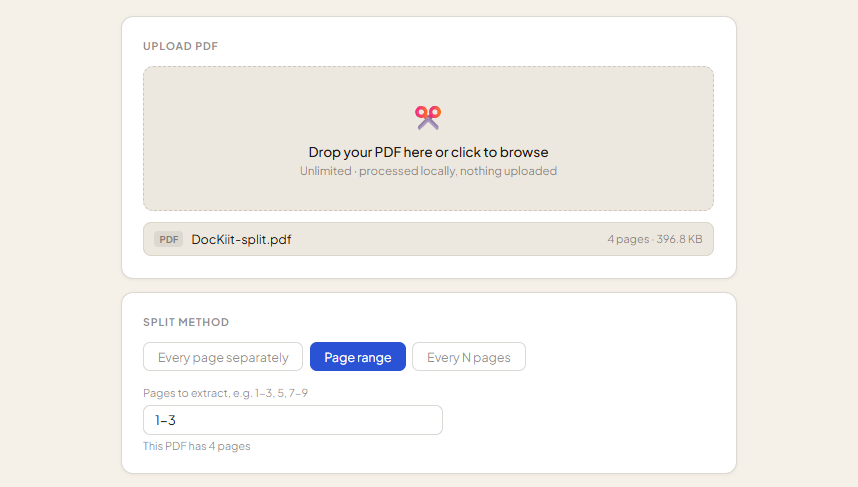
Drop in the file you want to split, then choose which pages or page ranges you want pulled out.
Step 4: Set Your Page Ranges
Enter the page ranges you want as separate files. Each range you define becomes its own downloadable PDF, keeping the pages in that section together in their original order.
Step 5: Split and Download
Once your ranges are set, split the file. You'll get a separate PDF for each range you defined, ready to download straight to your device.
DocKiit's Split tool is free to use and processes everything locally in your browser, so your files never leave your device.
Try Split PDF →Tips for Cleaner Splits
A few things that make splitting by page range go smoothly:
- Double-check your page numbers against the actual PDF page count before splitting — a PDF's printed page numbers don't always match its file page count if there's a cover or blank page
- Name each resulting file clearly (e.g. report-section-1.pdf) so you don't lose track of which range is which once they're split
- If a section needs further breaking down later, you can always re-split one of the resulting files again
Frequently Asked Questions
Is splitting a PDF by page range free on DocKiit?
Yes. Splitting PDFs, including by page range, is a free tool on DocKiit — no account or subscription required.
Can I split a PDF into more than two or three sections?
Yes. You can define as many page ranges as you need, and each one will be split out into its own file.
Will splitting by page range affect the quality of my document?
No. Splitting only separates existing pages into new files — it doesn't re-process or compress them, so quality, fonts, and formatting stay exactly as they were in the original.
What's the difference between splitting by page range and extracting a single page?
Extracting a single page pulls out just one page as its own file. Splitting by page range lets you pull out a group of consecutive pages — like pages 5 through 12 — as a single new document.
Can I merge the split files back together later?
Yes. If you need to recombine sections later, DocKiit's Merge tool can combine multiple PDFs back into one file. Merge is a Pro feature.