How to Merge PDFs in a Specific Order
Merging PDFs is easy — until the pages come out in the wrong order. If you've ever combined a few files and ended up with your cover page buried in the middle, it's usually not a bug. It's just that most tools merge files in the order you added them, and it's easy to lose track of that order when you're uploading several files at once.
Here's how to make sure your merged PDF comes out in exactly the order you want it — the first time.
Why Order Matters When Merging PDFs
A merged PDF isn't just a pile of pages — it's a document meant to be read start to finish. Order matters most when:
- You're combining a cover letter with a resume or portfolio
- You're compiling a contract with its exhibits or appendices in sequence
- You're merging scanned pages that need to read in the order they were scanned
- You're building a report from separate sections that only make sense in a specific sequence
- You're submitting a document where page order is part of the requirement (applications, filings, etc.)
Get the order wrong and you'll either have to start over or send a document that reads out of sequence — neither is a great look.
How Merge Order Actually Works on DocKiit
On DocKiit, the merge order follows the order you upload your files in. The first file you upload becomes page one of the merged document, the second file you upload follows immediately after, and so on. There's no separate reordering step — the sequence is set the moment you add your files.
That makes the process fast, but it also means the order you click or drag your files in is the order that ends up in the final PDF. If you upload files out of sequence, the merged document will reflect that.
How to Merge PDFs in the Right Order on DocKiit
Step 1: Plan Your Order Before You Start
Before opening the tool, take a quick look at your files and decide the sequence you want. If it helps, rename the files with numbers at the front (e.g. 1-cover.pdf, 2-resume.pdf, 3-portfolio.pdf) so it's easy to select them in order.
Step 2: Open the Merge Tool
Head to DocKiit and select Merge PDFs from the homepage. This is a Pro feature — you'll need a DocKiit Pro account to access it.
Step 3: Upload Files in the Order You Want Them
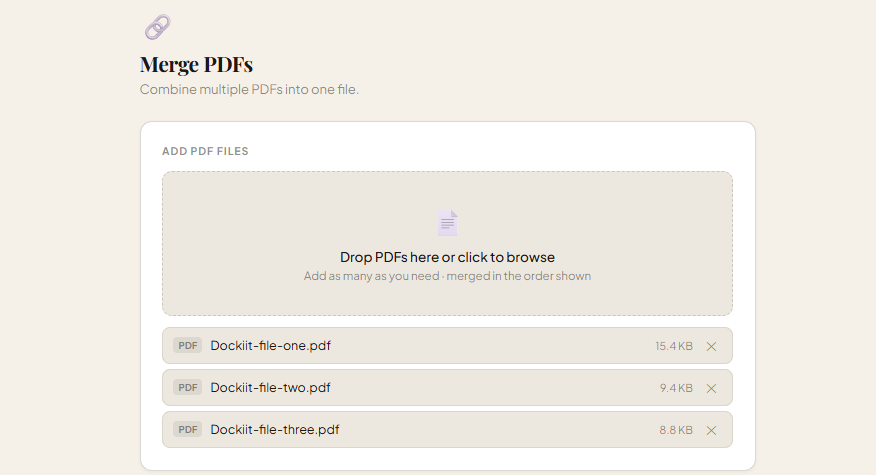
Add your first file — this becomes page one. Then add each additional file in the sequence you planned. Since DocKiit follows upload order, whatever you add first is what appears first in the final document.
Step 4: Double-Check Before You Merge
Glance over the file list to confirm it matches the order you intended. This is the easiest point to catch a mistake — before the files are combined.
Step 5: Merge and Download
Hit Merge and your combined PDF downloads straight to your device, pages in exactly the sequence you uploaded them.
DocKiit Pro gives you access to PDF merging, compression, splitting and more — all processed locally in your browser, so your files never leave your device. USD $9.99/mo.
Start Pro →What to Do If You Upload Files Out of Order
If you spot a mistake, you can remove a file from the list by clicking the X next to it.
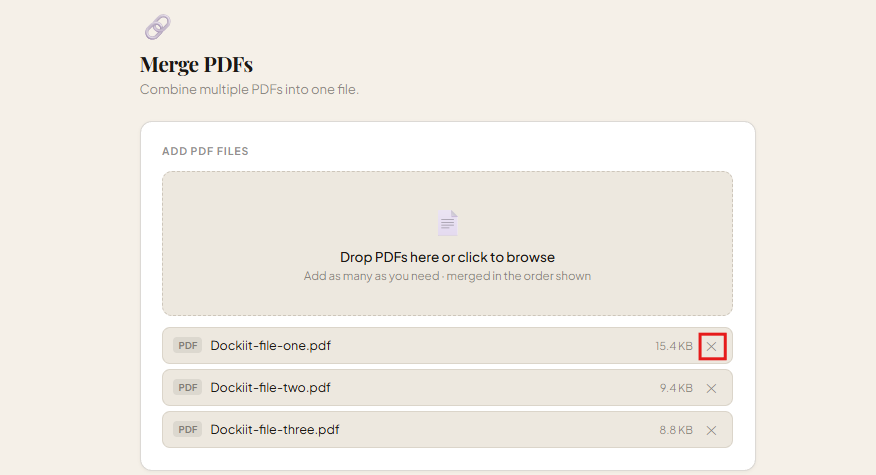
If the sequence is off by more than one file, it's usually simplest to clear the list and re-upload everything in the correct order.
Frequently Asked Questions
Can I reorder files after uploading them, before merging?
DocKiit merges files in the order they're uploaded, so the most reliable way to control order is to upload files in your intended sequence from the start. You can remove a file with the X if needed, and re-upload files in the correct order.
What if I need to reorder pages within a single PDF, not just between files?
For that, use DocKiit's Split tool to separate a PDF into individual pages, then merge those pages back together in the order you want.
Does the file name affect the merge order?
No. The merge order is based on the sequence you upload files in, not their file names. Numbering your files (1-, 2-, 3-) is just a helpful way to keep yourself organized while selecting them.
Will merging in a different order affect quality?
No. Order only affects page sequence — DocKiit combines PDF pages directly without re-processing them, so quality, fonts, and formatting stay exactly as they were in the originals.
Can I merge files from different folders or devices?
Yes. You can upload files from anywhere on your device in whatever order you choose. Just make sure you select them in the sequence you want them to appear.